Editor – Device Page
Use the Device page to view, select, and modify general device settings for a remote device. These settings are the minimum required for remote device functionality. The Device page of a remote device editor typically contains settings unique to its field device type(s) or to the EIE itself.
|
Click the thumbnail to see an example |
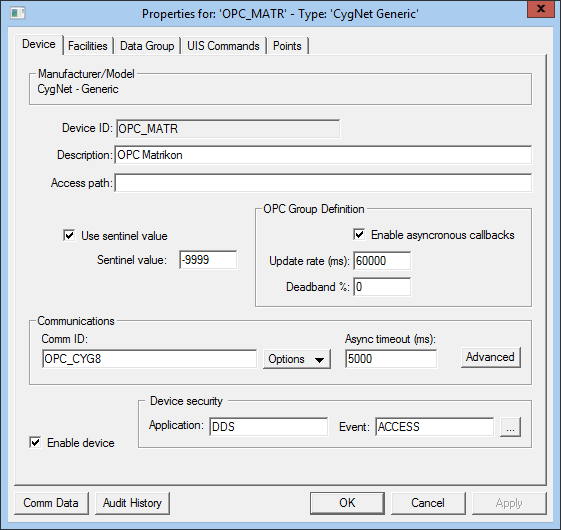
For more information, see Remote Device Editors.
Device Properties
The following table lists and describes specialized Device page properties for this device. See Device Page for common properties.
| Property | Description | ||||||
|---|---|---|---|---|---|---|---|
|
Device ID |
The unique identifier of an instance for this device. This free-form name must be unique in the DDS and the FAC. That is, it must be a name not used by any other communication device, import/export device, remote device, or facility. CygNet naming standards for device ID are as follows:
|
||||||
|
Description |
Displays a user-defined description of the remote device. A free-form description of the device. 32 character maximum. |
||||||
|
Sentinel Value See the following topics with more information about configuring point processing for unreliable data:
|
|||||||
|
Use sentinel value |
To accommodate OPC servers that send sentinel values to indicate data quality, select this check box to use the sentinel value for this device. If checked it will apply to all data groups on this device. |
||||||
|
Sentinel value |
Specify the sentinel value to be used or if the "defaultSentinelValue" is specified in the DTF for the device, that value will be displayed. |
||||||
|
The CygNet "Access path" must match the access path for this device as defined in the OPC server. Note: This value is also a component of the path used to access an OPC tag. By default, the separator character used between this value and the "itemId" value (set on the DEID in the device template file) for the path is "." (period). To set an alternative or custom value for this separator, use the accessPathSeparator attribute when defining the DataGroup element in the DTF. |
|||||||
|
OPC Group Definition See OPC Group Management for more information about OPC groups. |
|||||||
|
Enable asynchronous callbacks |
When Enable asynchronous callbacks is selected, the OPC server will perform asynchronous callbacks and push data to the OPC EIE as it retrieves changed values from the remote device. |
||||||
|
Update rate (ms) |
The value selected for the Update rate (ms) for asynchronous callbacks determines the following behavior:
The default value is 60000 milliseconds. |
||||||
|
Deadband % |
The Deadband % is an OPC standard capability that requests that an OPC server only report value changes that exceed a configured percentage. Type a percentage value for the OPC Group Definition. The default value is 0. |
||||||
| Communications | |||||||
|
Comm ID |
The name of the communication device this remote device uses. Click the Options button to select from the choices in the drop-down menu. See Communication Devices. |
||||||
|
Options |
This button provides several communications-oriented options. Options are as follows:
Note: When selecting a communication device, the only options available in the Select Communications Device dialog box are OPC Comm devices. |
||||||
|
Async timeout (ms) |
Async timeout (ms) displays the time in milliseconds a remote device waits for a valid response from an associated field device before timing out. This setting is not the same as similar settings on the currently active communication device and device failover settings. But these settings work in conjunction with one another. |
||||||
|
Advanced |
Click to access advanced communication device failover settings. |
||||||
|
Enable device |
Select whether to enable or disable the device. The default setting is disabled. If an invalid configuration is detected, the device will automatically be disabled. The device can be re-enabled after the invalid configuration is fixed. |
||||||
| Device security | |||||||
|
Application |
Defines the ACS security application name used to validate the users of this device. See Applications, Events, Permissions. |
||||||
|
Event |
Defines the ACS security event used to validate users of this device. Click … to select the security event. See Applications, Events, Permissions. |
||||||
|
Comm Data |
Enables you to open a modeless Communications Data Viewer dialog box. |
||||||
|
Audit History |
Enables you to view the audit trail for the device. |
||||||


